May 12, 2026Fabla Team3 min read
Fabla Android Beta Tester Manual
A step-by-step guide for invited Android beta testers to accept the Firebase App Distribution invite, install Fabla, test core flows, and report issues clearly.
This guide explains how to join the Fabla Android beta, install the test build, and report issues clearly to the team.
Step 1: Open the shared invitation link
- Open the Firebase App Distribution invitation link shared by the Fabla team.
- Confirm that the invitation is for Fabla.
- Open the link on your Android phone or tablet.
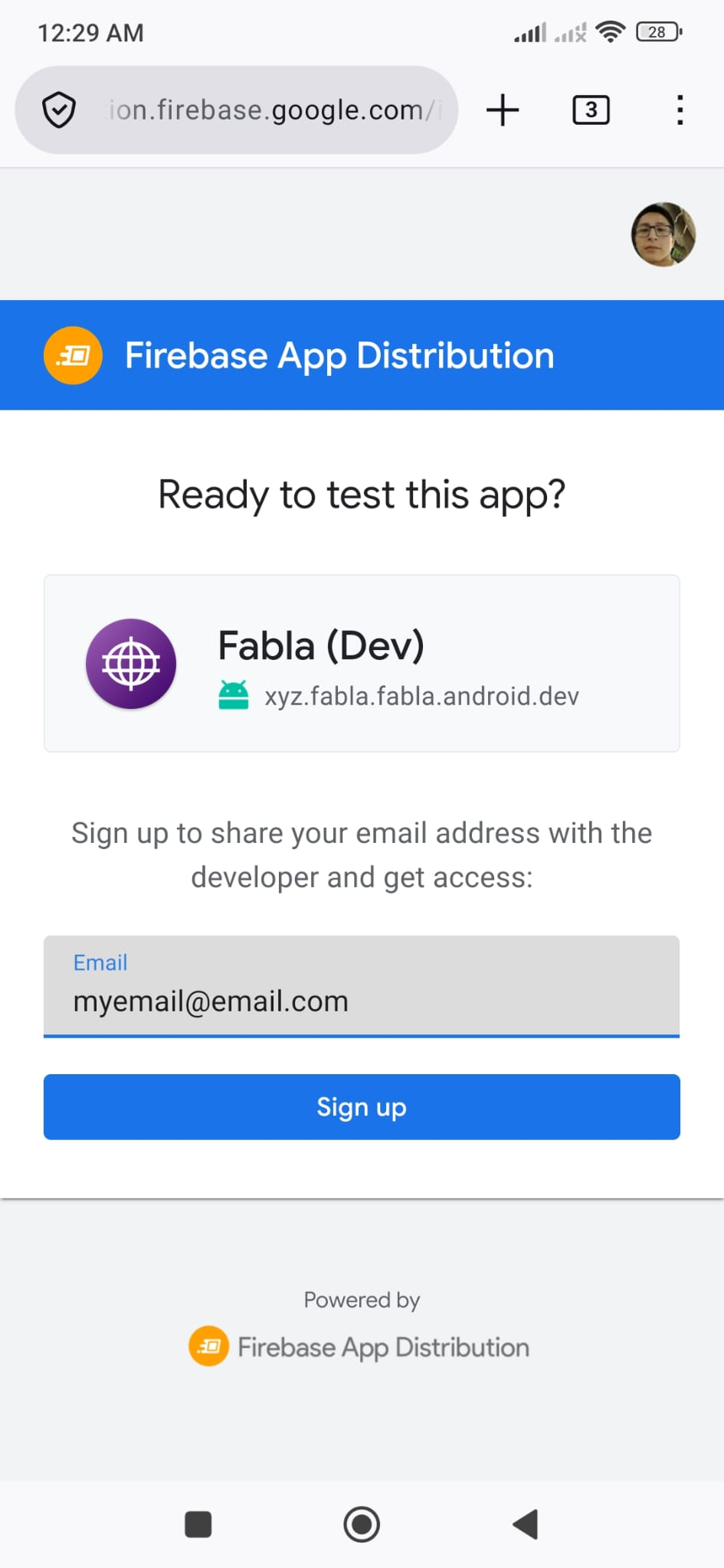
Step 2: Accept the invitation
- Tap the shared invitation link.
- Sign in with your Google account.
- Accept the invitation to become a Fabla beta tester.
Step 3: Open Firebase App Distribution or Firebase App Tester
- After accepting the invitation, Firebase App Tester may send an email with instructions.
- You do not need to wait for that email. Open Firebase App Distribution on your Android device.
- Sign in with the same Google account you used to accept the Fabla invitation.
- From there, open or install Firebase App Tester if needed.
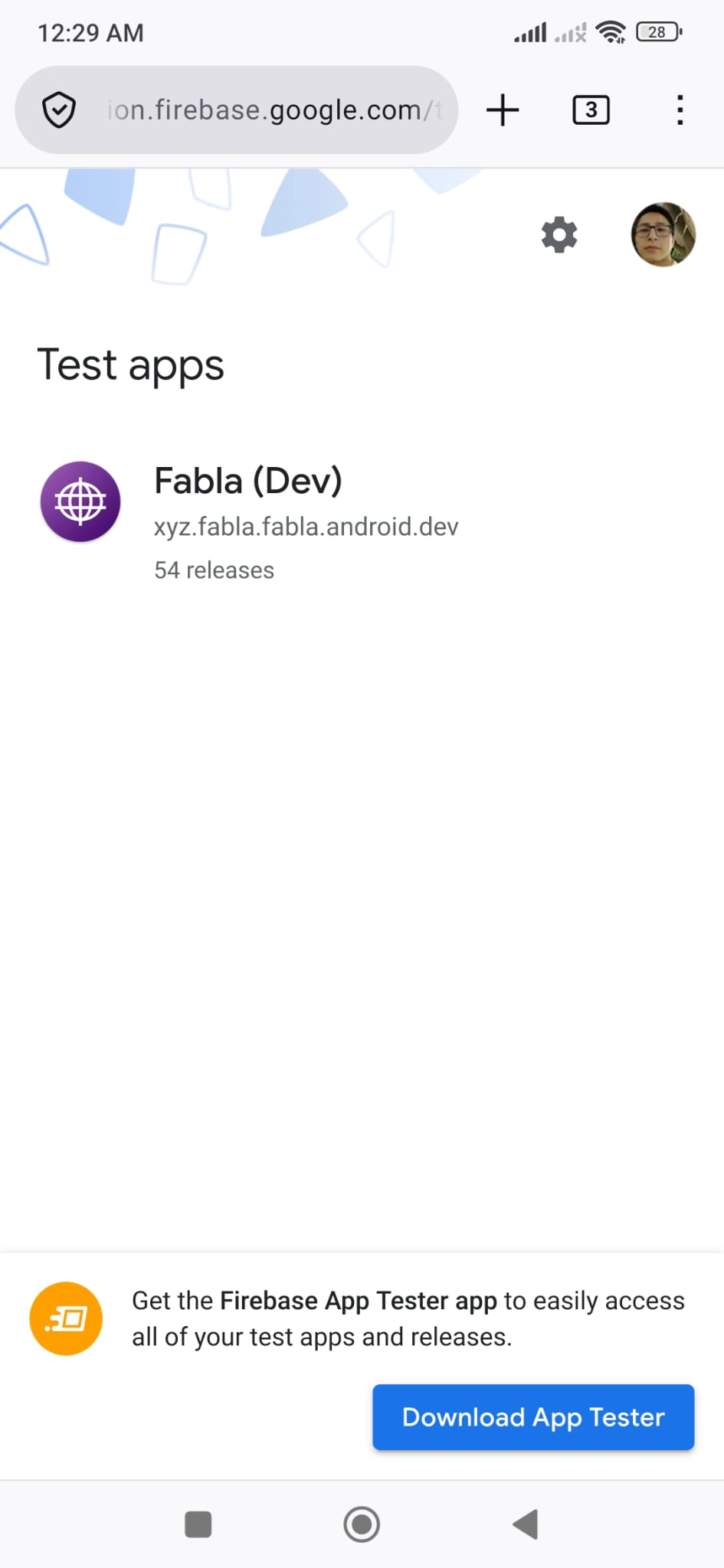
Step 4: Install Firebase App Tester if required
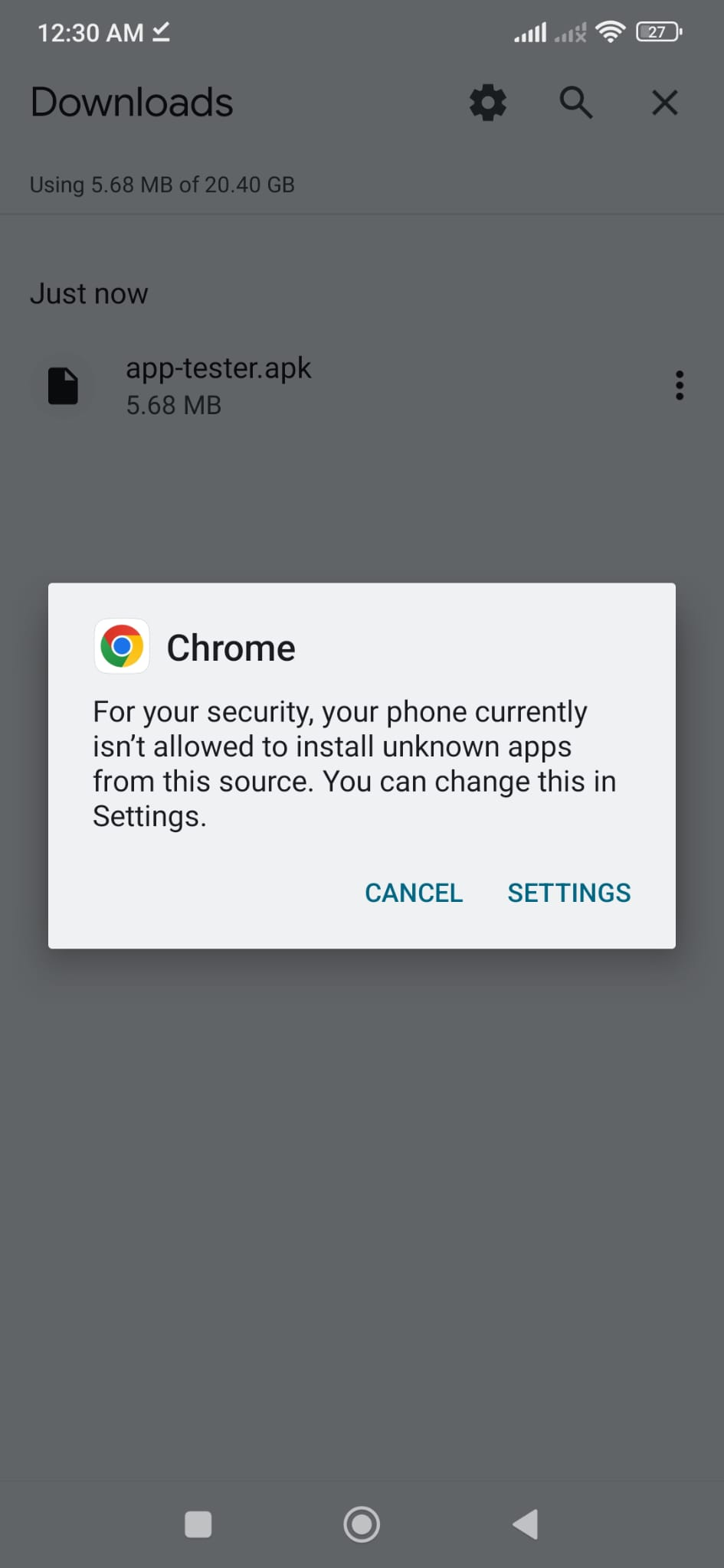
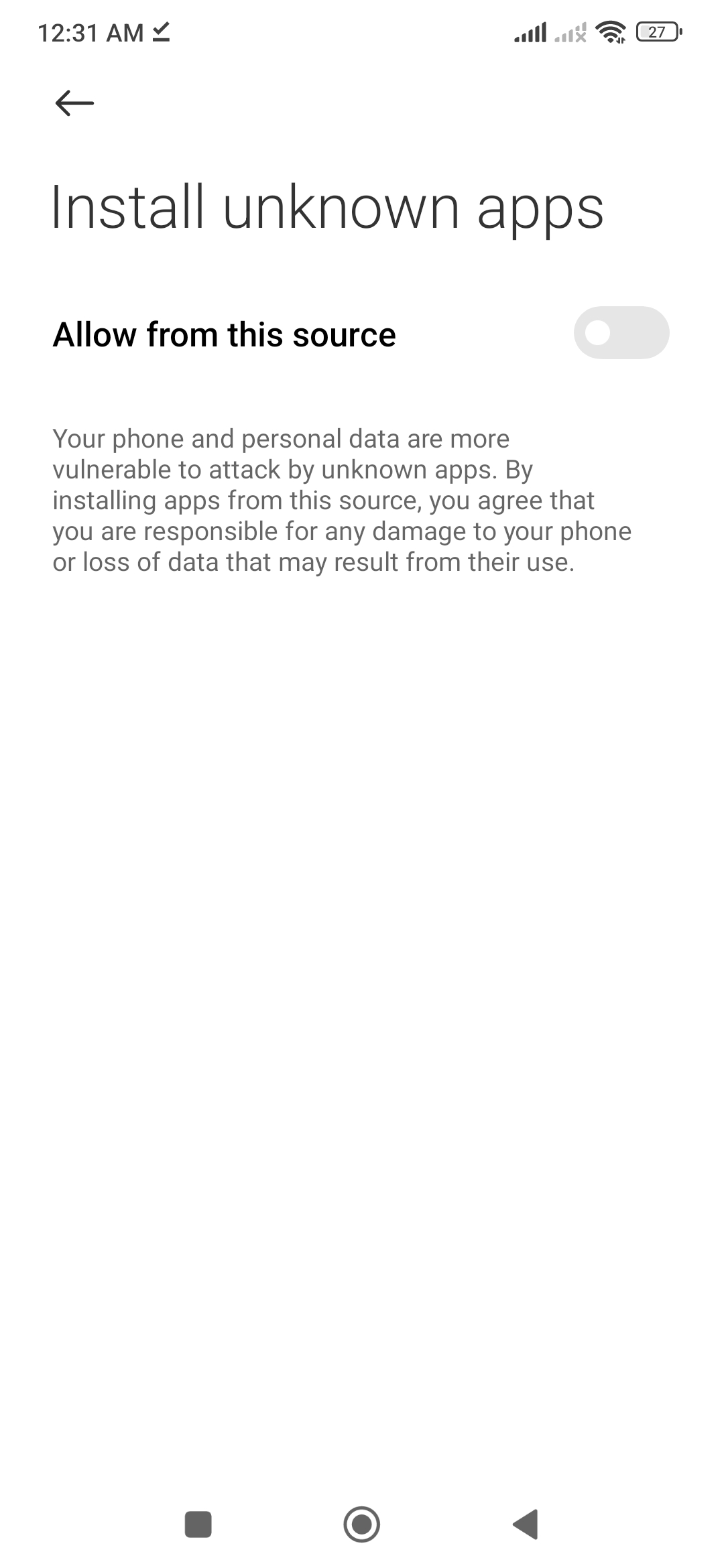
- You may need to allow your browser to install applications.
- After downloading
app-tester.apk, Android will prompt you to install it. - Follow the installation prompts on your device.
Step 5: Open Firebase App Tester
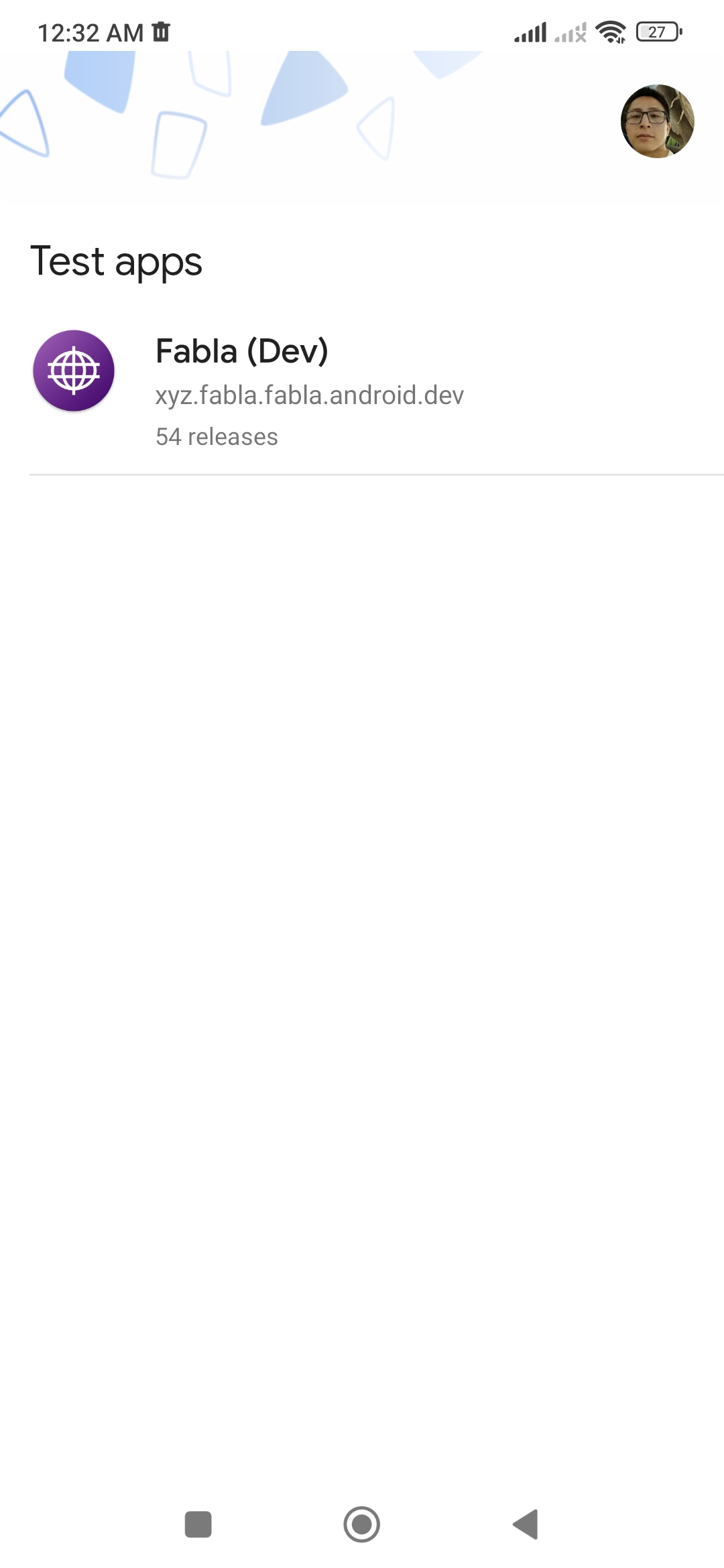
- Open the Firebase App Tester app.
- Sign in with the same Google account you used with the shared invitation link.
Step 6: Allow app installation
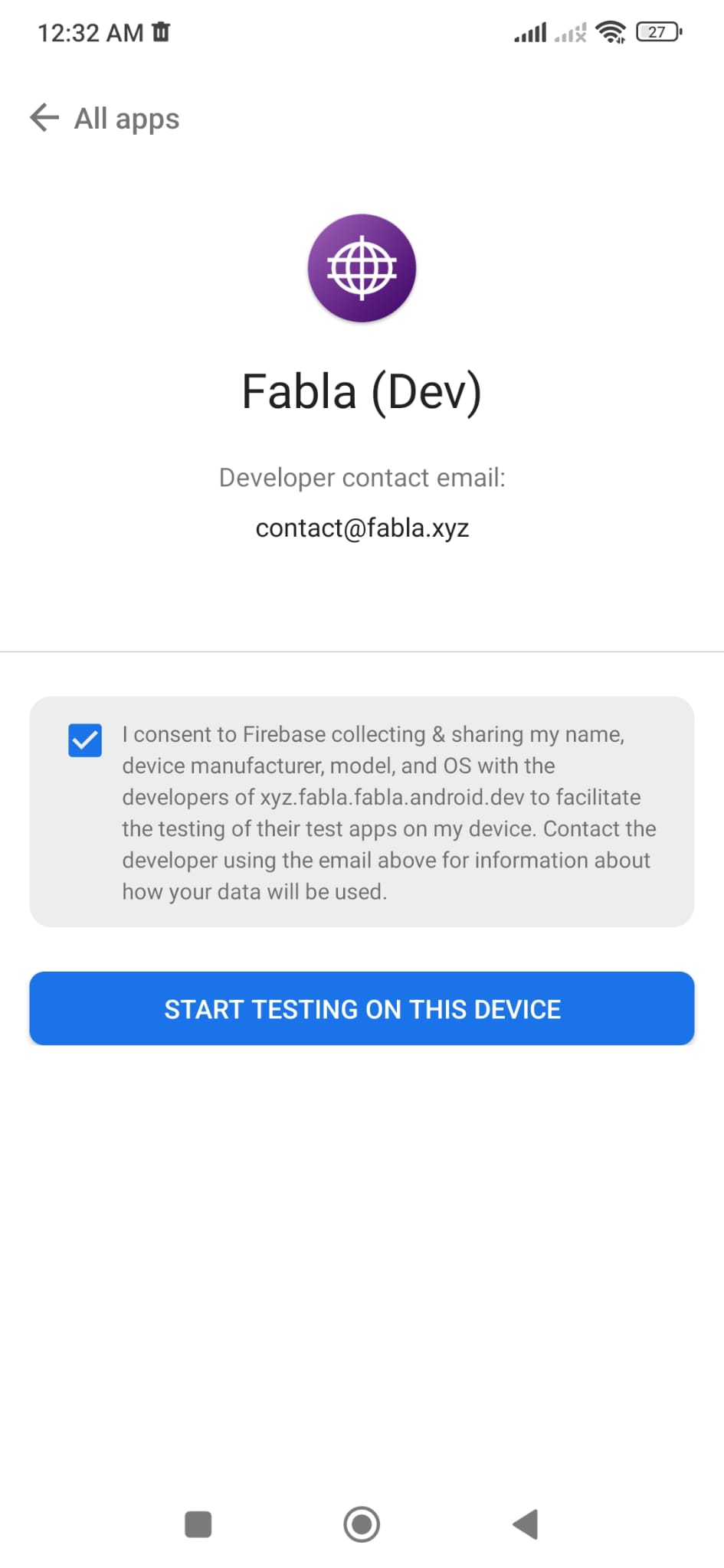
- Android may ask for permission to install apps from Firebase App Tester.
- Tap Settings if prompted.
- Turn on Allow from this source.
- Return to Firebase App Tester.
Step 7: Find Fabla
- In Firebase App Tester, look for Fabla.
- Tap Fabla to open the app test page.
Step 8: Install Fabla
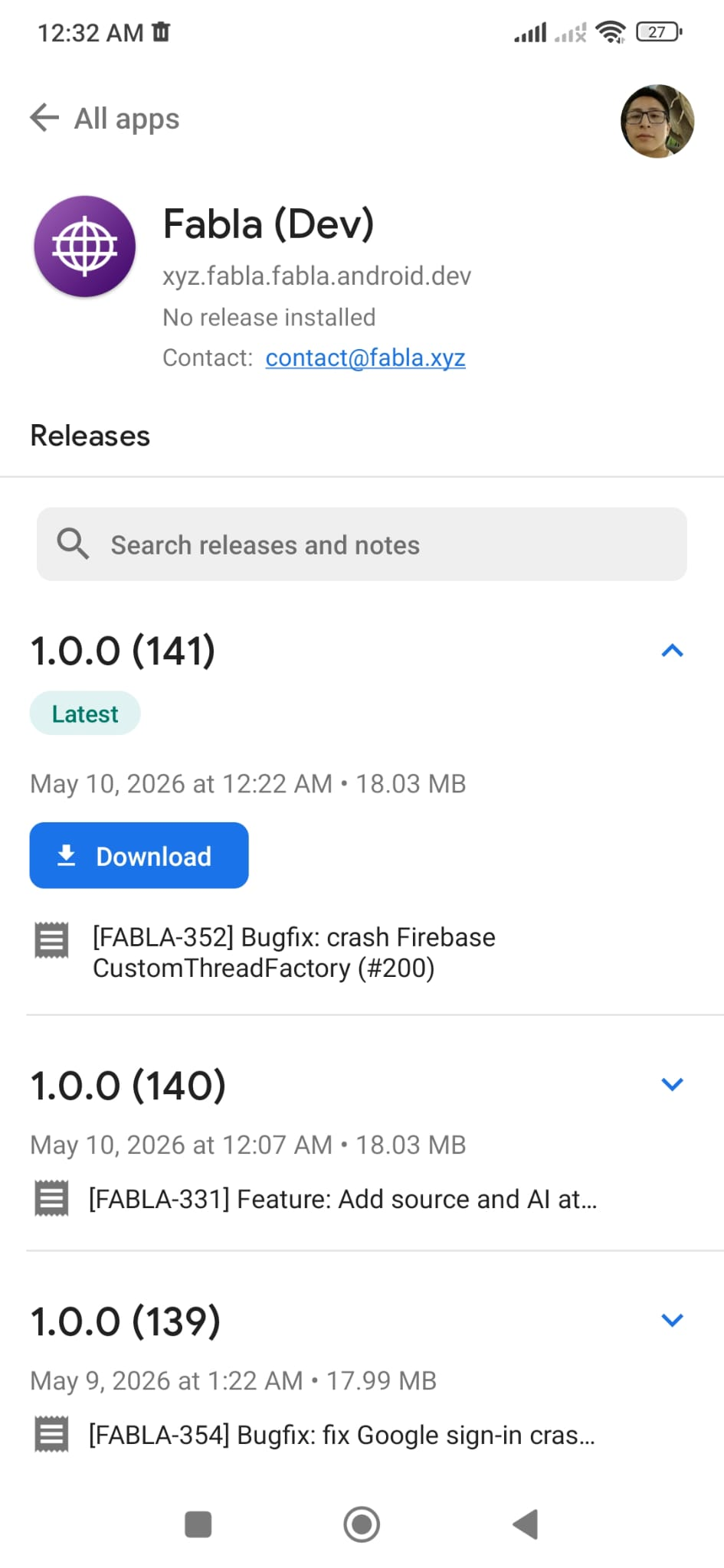
- Tap Download or Install.
- Wait for the download to finish.
- Confirm the Android installation prompt.
- When installation is complete, tap Open.
Step 9: Test Fabla
- Use Fabla as you normally would.
- Try the main features.
- Check that screens load correctly.
- Check that buttons, audio, language content, login, and navigation work as expected.
- Watch for crashes, freezes, slow loading, missing text, or broken pages.
Reporting issues
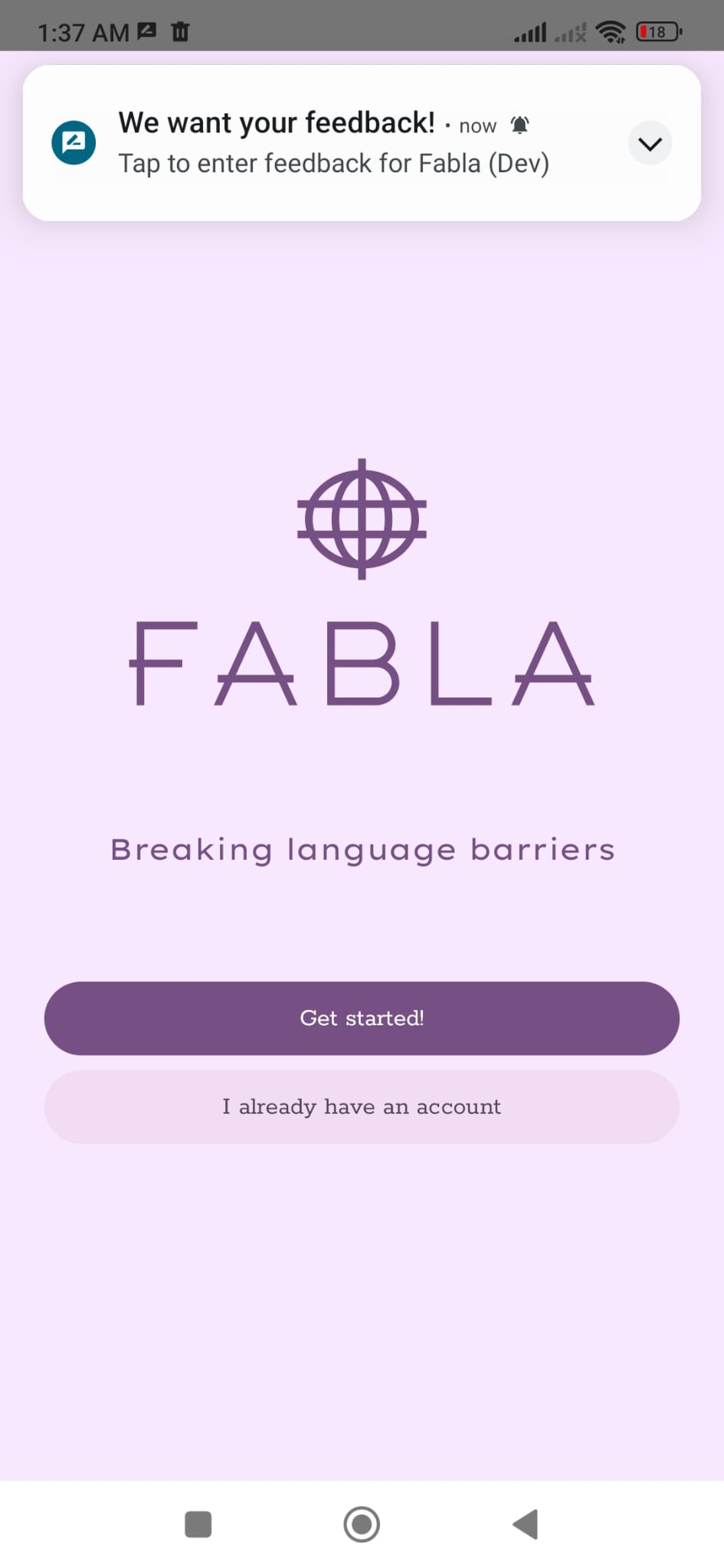
Send feedback to the Fabla team using the message box shown in the app.
Include:
- what you were trying to do
- what happened
- what you expected to happen
Installing future updates
- When a new Fabla beta version is available, open Firebase App Tester.
- Tap Fabla.
- Tap Download or Install.
- Test the new version.
Common problems
- Fabla is not visible: make sure you accepted the invitation with the same Google account.
- Fabla will not install: make sure Allow from this source is enabled.
- Update fails: uninstall the previous Fabla beta version, then install the new one.
- Invitation link does not work: contact the Fabla team and ask for a new invitation.
- Access is blocked: try another Google account or contact the Fabla team.